
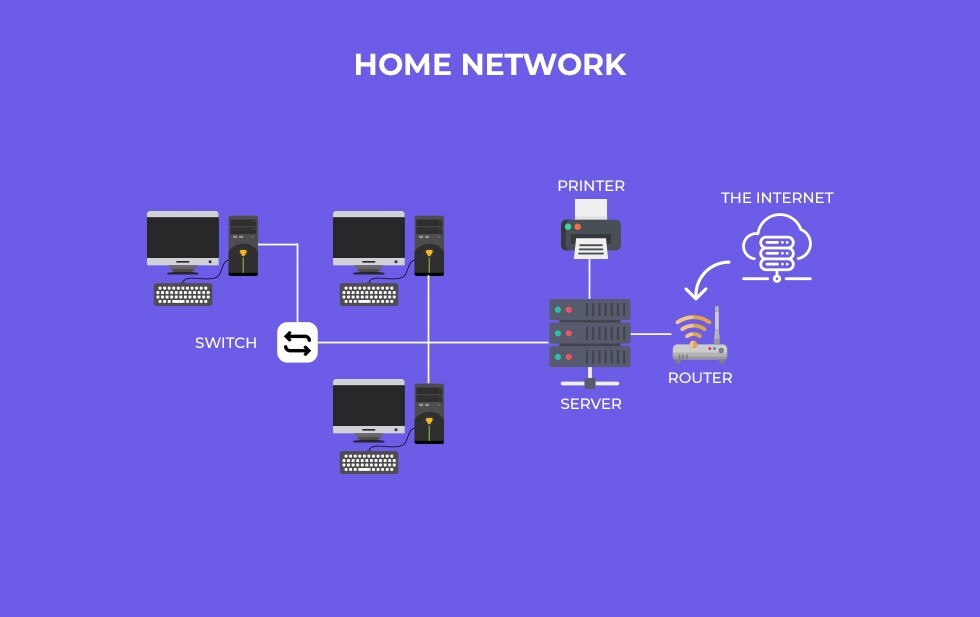
Setting up a small network begins after confirming that there is access to a connection outside the home that provides internet (the demarcation).
The connection to the home is usually via coaxial cable.
The first connection to this coaxial cable is the cable modem.
- Start by carefully unboxing your new cable modem. Check that all components are present, including the modem itself, power adapter, Ethernet cable, and any installation guides. Before beginning setup, ensure your internet service is active and that you have your account details handy.
Connecting Your Cable Modem
Follow these steps to connect your modem:
- Connect the coaxial cable from your wall outlet to the modem’s coax port.
- Plug the power adapter into an electrical outlet and connect it to the modem.
- Wait for the modem to power up and for the indicator lights to stabilize, indicating a successful connection.
- Use an Ethernet cable to connect the modem to your router or directly to a computer for initial setup.
Activating Your Cable Modem
Most cable modems require activation through your internet service provider (ISP).
Follow these steps:
- Open a web browser and visit the activation website provided by your ISP or use their designated app.
- Enter your account details and follow the on-screen instructions.
- Wait for confirmation that your modem has been successfully activated.
⇒ It may be necessary to contact your ISP and provide the serial number and MAC Address so they can add the cable modem to their inventory.
Optimizing Your Internet Speed in 2026
Once your modem is activated, you can take additional steps to ensure optimal speed and performance:
- Update your router firmware to the latest version for improved stability and security.
- Place your router in a central location, away from interference, to maximize coverage.
- Use wired Ethernet connections for devices that require high-speed internet, such as gaming consoles or streaming devices.
- Configure Quality of Service (QoS) settings to prioritize bandwidth for critical applications.
- Test your internet speed using reliable tools and compare it to your plan’s advertised speeds.
The next step involves the purchase and connection to a Wi-Fi router or Mesh System.
Current Wi-Fi Router Technology 2026
In 2026, Wi-Fi technology is set to evolve significantly with the introduction of Wi-Fi 7 and Wi-Fi 8. Wi-Fi 7 will extend the capabilities of Wi-Fi 6 with features like Multi-Link Operation, improving connection robustness and reducing latency.
This technology will be available in most high-end smartphones and PCs, although access points and routers will still need to catch up.
Wi-Fi Router vs. Mesh System
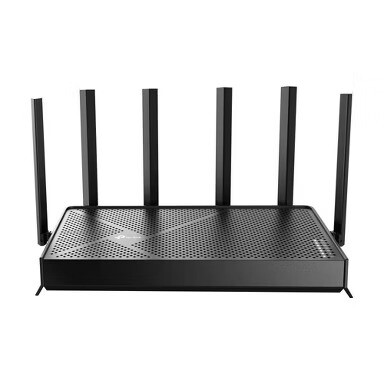
Wi-Fi Router: A single device that broadcasts Wi-Fi from one point, ideal for smaller homes or simpler setups. It can be prone to dead spots and interference.
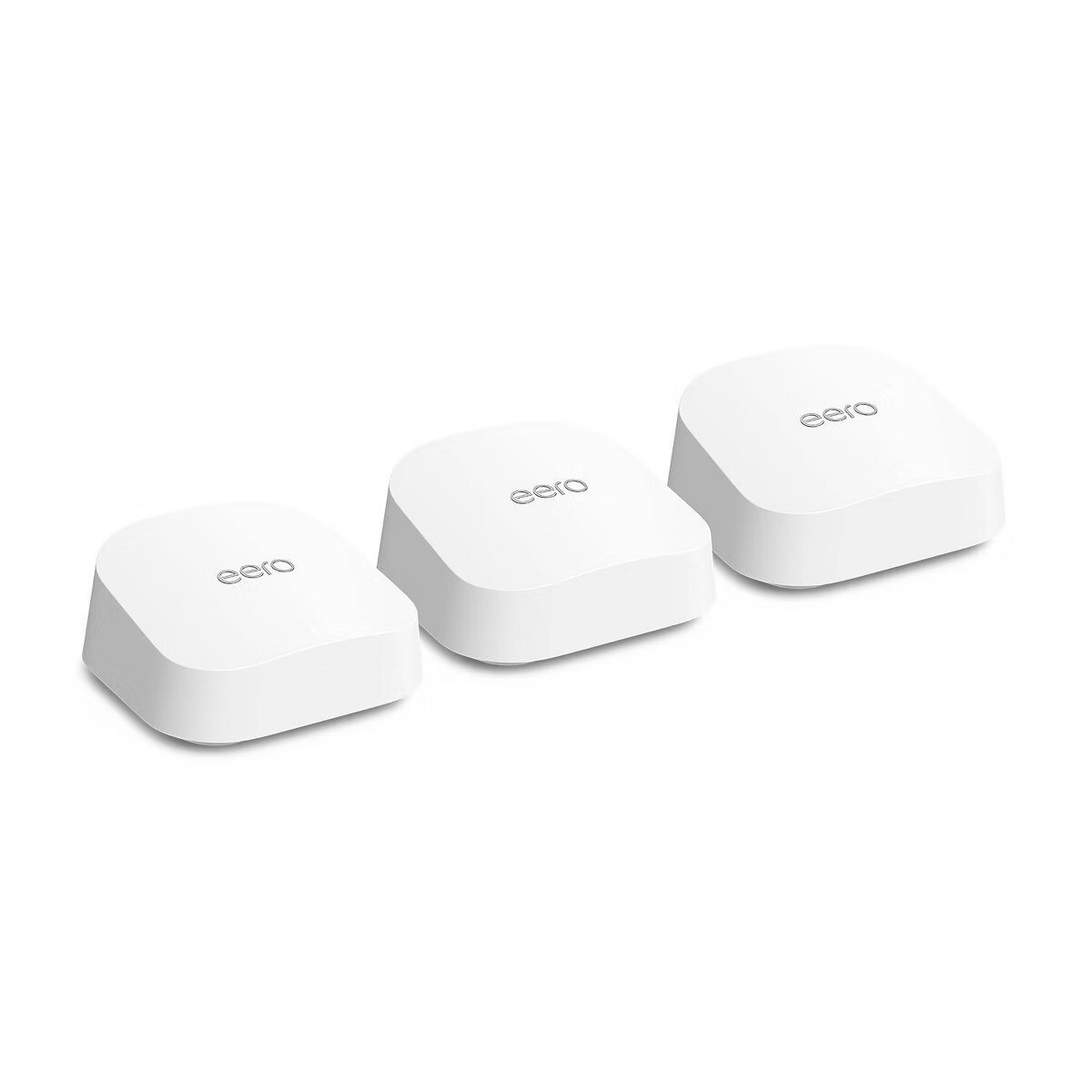
Mesh System: Multiple nodes connected to a central point, providing a strong and reliable internet connection throughout a home. It is ideal for larger homes or areas with Wi-Fi dead zones.
Connecting a Cable Modem to a Wi-Fi System or Mesh System
To connect a cable modem to a Wi-Fi router or mesh system, follow these steps:
- Connect the modem to the cable outlet: Use a coaxial cable to connect the modem to the cable outlet. Ensure the cable is securely screwed in.
- Power the modem: Plug the modem into an electrical outlet and wait for the power light to stabilize.
- Connect the modem to the router: Use an Ethernet cable to connect the modem to the router’s WAN port (usually labeled “Internet”).
- Power on the router: Plug the router into a power outlet and wait for it to power up.
- Verify the connection: Check that the connection lights on both the modem and router are on, indicating a successful link.
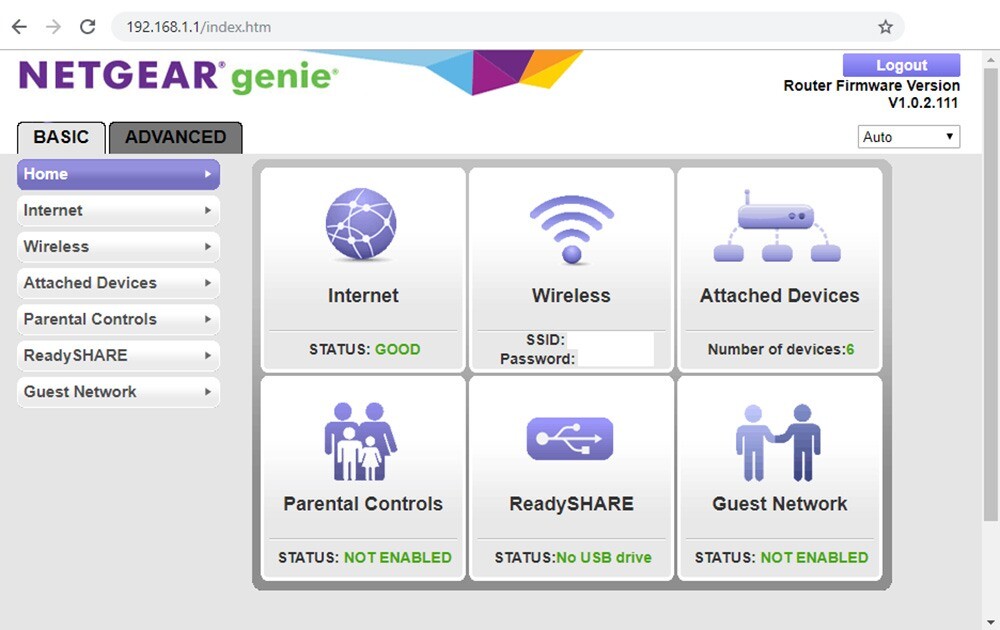
- Configure Wi-i settings: Access the router’s web interface to set up your Wi-Fi network, changing the network name (SSID) and password as needed.
- For mesh systems, ensure to check the router’s age, ISP rules, and band support before adding mesh nodes. Follow the specific instructions provided by your router’s manufacturer for optimal setup.